
MANUAL
STEP Pico ST2048
Edition 1
Content
4.1 Lock and open button
4.2 OSDP
1 Introduction
This article provides instructions for setting up, installing, using and maintaining the Pico door controller.
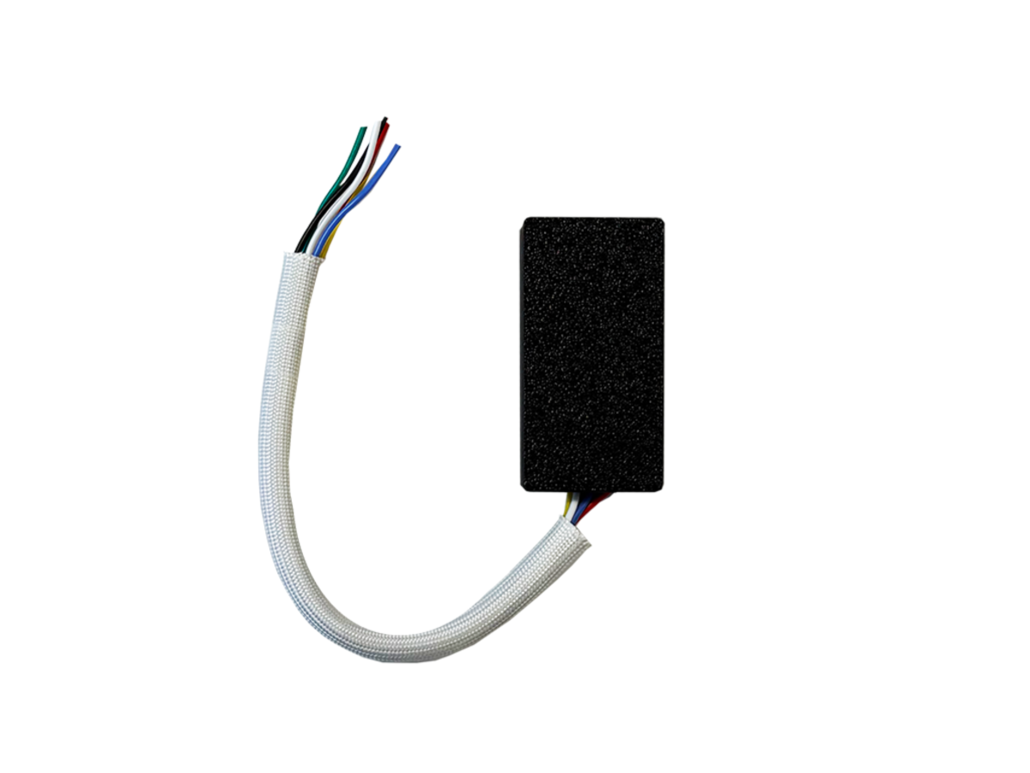
Pico is a compact door central designed for controlling a door with support for BLE and open button with one solid-state controlled output. Voltage in is the same voltage that comes out via the output.
It can be used both in stand-alone installations via Steplock Lite and in larger system solutions in hybrid mode* via Steplock Cloud / PRO.
* Not yet included, future function.
1.1 Technical specification
| Specifikations | ST2048 |
| Power Supply | 12–24 VDC ±15% |
| Power consumption | 19 mA norm, 22 mA max |
| IP Rating | IP21 |
| Color | Black |
| Communication | BLE |
| Dimensions | 17 x 38 mm |
| Input | Open button |
| Output | VOUT |
2 Overview
Following is an overview of the ST2048 Pico door controller.
2.1 STEP Pico
2.2 Connections
| Power Supply | Lock Power |
| RED: + Power 12-24 VDC | YELLOW: + Power output |
| GREEN: - Ground | GREEN: - Ground output |
| Open Button | |
| BLUE: Open button out | |
| BLACK: Open button return |
3 Included in the package
|
1 x ST2048 |
1 x QR-code for Setup in StepLock Lite |
4 Installation
4.1 Lock and open button
1. Makes sure the power is off when connecting the cables to the 12-24V input on the Pico.
2. Connect the lock to the power output.
3 2048 - Connect the open button to the BTN input on the Pico.
4. Turn on the power.
5. Mount the Pico in the door frame or in the door behind on the lock.
6. Test function by following the instructions on how to set up the Pico in the StepLock Lite App.
5 App administration
Step by Step guide on how to setup a system, add a device and give permission to end users.
The account that is logged in when the system is created will automatically become the system owner and cannot delete the system or remove its own admin rights. If the system owner needs to be changed, please contact our support team and we will assist with this.
We recommend creating the system using the end user’s account.
- Press the "settings wheel" at the top right corner.
- Press "Create system"
See images below
3. Enter a System name and press the "Scan QR Code" Button.
4. Aim the Camera towards the QR-code of the device you want to add.
See images below
The system has now been created and we added the device to the system called "STBLE_766E".
This door can now be opened by pressing the Lock symbol (Button) as long as you are nearby the device.
OBS - You might get a popup saying enable bluetooth. This needs to be allowed in order for the Phone and the device to communicate so the door can be opened.
5. Press the button "Go to my system"
The "Doors" Meny is the one displayed in the image below
Admin Menu
This menu is for the administrator of the system to manage the whole system for the users. You can add permission to open using keyfobs, ekeys. Manage devices and see logs.
- Manage my system
In this meny you can change the name of the "System name" and change the "System time zone".
- Manage Devices
In this menu you can see all devices and add new devices or remove devices. You can also click on one device to get to the next menu to see and change the device settings.
-
Manage Ekeys
In this menu you can see all the ekeys, create new ones and manage existing. ekey is access through the app when pressing the lock symbol showed in doors menu.
Once "Add ekey" is pressed you can select if you want to invite someone to help administrate the system or a user which can only open the doors you give the user permission to open. There can only be 2 admin in a system.
OBS - You enter the email adress the user used to create the account on Steplock Lite.
Once the user has been invited they receive a notification on ring bell at the top left of the start menu.
The user clicks the ring bell and accepts the invitation and gains the access to the doors selected by the administrator.
See images below
- View Logs
In this menu you can see all the logs. When you are nearby the device you can select a device and receive the logs of what has happend to this device.
See images below
6 Hybridmode
Possible integration with Steplock Cloud 3.0 estimated available Q3-Q4 2026.
7 Fault finding
- No power → control supply.
- Lock does not open → check relay and connections.
- BLE does not reach → avoid metal obstacles.
8 Safety measures
- Do not install on the outside of the door. The device should be placed as near the locking device as possible.